The screen and windows
What is where on the screen, the Game Menu tiles that work, the bag and equipment page, the Skill page, the map and radar, the System window, Combat Settings with Auto Potion, and how to leave the game.
On this page
This page names every part of the screen and the windows you will use in your first days: where each one is, how to open it and what its rows do. The keys are on Controls.
The screen
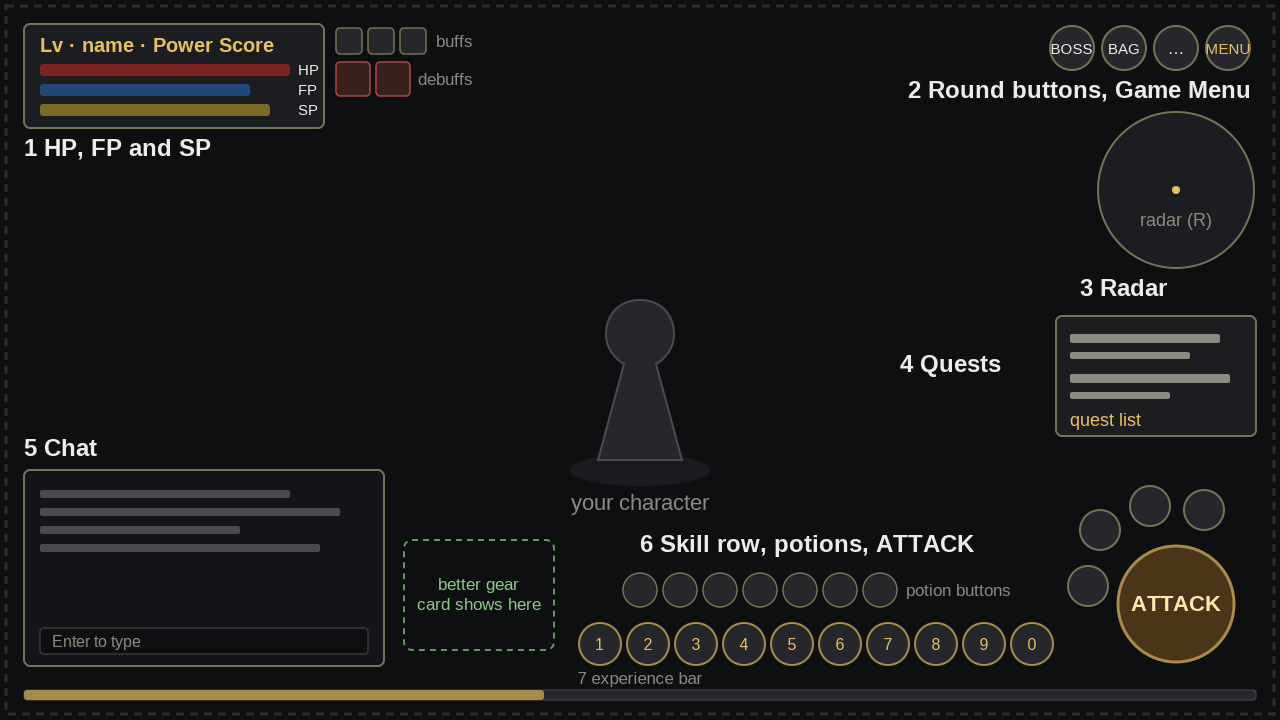
| Where | What |
|---|---|
| Top left | Your HP, FP and SP panel. Buffs as small icons to its right; debuffs as larger icons under them, with their seconds |
| Top right | A strip of round buttons: the boss list (with the number of bosses alive) and the bag; the last one opens the Game Menu |
| Top right | The radar (minimap), on R |
| Right edge | The quest list |
| Lower left | Chat: Enter to type |
| Bottom right | The ATTACK button with its round buttons, the skill row and the potion row (see Controls) |
| Along the bottom | The experience bar |
The Game Menu
Esc, or the last round button of the top right strip, opens the Game Menu.
On the left it shows your purse: your nation's money (Dalant, Disena or CP), Gold, and five point rows, Temporary Point, Certain Point, ProcessingPoint, HuntingPoint and Gold Point. Under them, the Server Time clock: the game's time, UTC+8.
| Tile | Opens |
|---|---|
| Character | The equipment page |
| Skills | The Skill page |
| Spirits (Cora) | The Summoner window of the animus |
| Unit (Bellato) | The MAU hangar; dark, with its reason, for a class that cannot drive |
| Missions | The quest journal |
| Guild | The guild window |
| Representative | Your nation's council |
| Forge | The Forge: upgrade and combine gear |
| Portal | The big map and the travel panel |
| System | The System window (below) |
| Unstuck | Frees a stuck character (below) |
| Settings | Steps through the graphics presets |
The bag and the equipment page
I opens the character and equipment page with the bag beside it. Its live pages are Equipment (with an Accessories view), Outfit and Mount: see Outfits and Mounts.
- Worn gear stays in the bag, marked EQUIP. It still takes its slot.
- The bag has 20 slots a page, and up to five pages: more pages come from bag items.
- The item card, the compare view and the pop-up when you find stronger gear are on Item cards, sets and effects.
The Skill page
The Skill page has three tabs: Skill, Force and Assign Skills.
- Skill has the chips Close range, Long range, Item, Class and Archon. Your class skills are under Class; the ones on the level-30 list are grey and say "Required Level 30".
- Force has a chip for each Force line: Holy or Dark (by nation), Fire, Aqua, Terra and Wind.
- The list is on the left, the selected skill's details on the right, with a Cast button and a place on the skill deck.
The map and the radar
- M opens the map of the place you are in, with quest and boss marks. The travel panel lists every place a portal can take you. More in Getting around and the Atlas of Novus.
- R shows or hides the radar, the minimap at the top right. When you walk into a new area its name appears on screen.
The System window
Game Menu, System. Four tabs: Account, Game, Options and PC System.
Account
Change Character and Sign Out. See Leaving the game.
Game
The Game tab has a rail of pages: Combat, Target, Quick Slot, Name, Convenience, Community and Alarm. Among its rows:
| Row | What it does |
|---|---|
| Max View Range, Max Monsters Shown | How far and how many monsters are drawn |
| Grass & Plants, Trees & Rocks | Ground detail |
| Mouse Sensitivity, Camera Shake | The camera |
| Auto-Use HP / FP / SP Restoratives, Auto-Use Cure | The automatic potions (the same settings as the Auto Potion page) |
| Tall Item Card | A taller item card |
| Skill bar | New (a sliding row of ten round skills) or Classic (the square belt) |
| Auto-buy travel items | Buys travel items for you, with "Keep at least (Dalant)", "Keep at least (Gold)", "Most to pay for one item (Dalant)" and "Spare stones" |
| Party Block | "Refuse every party invitation." |
Options
- Graphics: Presets, Screen Effect, Shadow, Texture Quality, Resolution, Frame Rate, View Distance, Skill Effect (Off, Low, Medium, High), Item Effect, Stun / Critical Text, Animated Emoticons, Move Stick on PC.
- Sound: Master Volume, BGM, SFX, Footsteps, Ambient, EAX and the voice rows.
- There is no language setting today.
Combat Settings
The gear button at the end of the skill row opens Combat Settings. It has three pages. Each row is explained in Combat Settings, row by row; AUTO in AUTO hunt and AUTO quest.
Combat Settings page
| Row | Choices |
|---|---|
| Auto-Combat Range | Off, 20 m, 40 m, Unlimited |
| Party Leader-Centered Battle | On or off |
| Party Target Sharing | On or off |
| Auto-Return When Resurrected | On or off |
| Auto-Aim When Attacking | On or off |
| Attack Back When Hit | On or off |
| Keep Walking When Attacked | On or off |
| Skill Frequency | How often AUTO uses skills |
| Basic Attack | Auto or Manual |
| Pick Up Items | Off, Quest items, All |
Auto Potion page
| Row | How it works | A new character |
|---|---|---|
| HP Set | Drinks an HP potion when HP falls under the mark | 77 % |
| FP Set | Drinks an FP potion when FP falls under the mark | 60 % |
| SP Set | Drinks an SP potion when SP falls under the mark | 53 % |
| Cure | On or Off: drinks a cure when a debuff lands on you | Off |
| Adrenaline, Attack Potion, Defense Potion | On or Off: drinks that buff potion in a fight while its effect is off | Off |
- A row with no potion chosen is automatic: it shows the potion the game would drink, so a potion you just bought appears there by itself.
- More on potions: Potions and Auto Potion.
- Use Now drinks one at once. Find Merchant walks you to a potion merchant.
Target page
The target method and six priorities: what Tab and AUTO pick first.
Leaving the game
- Change Character (back to the lobby) and Sign Out are on the System window's Account tab.
- In Battle Mode both are refused. Switch to Peace Mode first with Ctrl+A, the sword and shield button, or the diamond on the HP panel:
Shown in the gameSign Out: Unable to log out during a battle. You are in Battle Mode – switch to Peace Mode first (Ctrl+A, the sword / shield button or the diamond on the HP panel).
- They are also refused within 10 seconds of a hit on you and 15 seconds of your own attack. The game says how long to wait:
Shown in the gameSign Out: Unable to log out during a battle. Wait 8 s (10 s after a hit on you).
- Closing the game window asks first, with Cancel:
Shown in the gameWould you like to exit the game?
Closing the window or losing the connection is never held back.